Updated: 4/16/26
The Yaesu
FT5DR can send messages (text) and pictures. It can also record audio files.
Let's talk about pictures first, because it actually
works!
|
Pictures can also be created by
using the
Yaesu camera MH-85A11U microphone that
sells for $192.07 with Free Shipping. |
Step 1- You only have to do this once!
First thing you need to
do is get you Radio ID Check. Press and hold "Fmenu,"
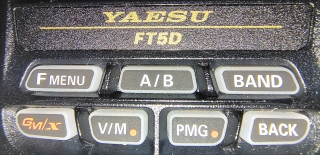
then press "GM"
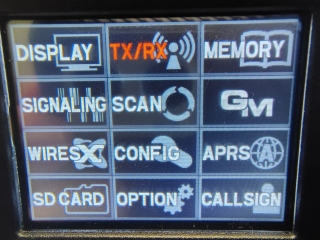
then click on "2 Radio ID Check"
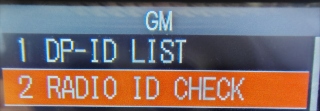
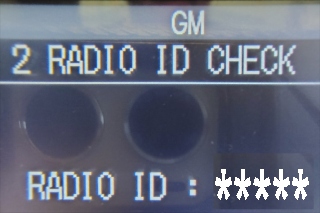
Copy the 5 digits exactly, case matters!
*
Step 2- Do this step to modify pictures.
The FTM Pic Program developed by SP4UBW is a tool designed to edit and send
images via SD card for C4FM Yaesu radios, including the FT5DR. It facilitates
transmitting photos in digital mode, allowing users to select, resize, and
prepare pictures for the FT5DR to send over the air.
Read about the software
author SP4UBW.
Download the file here
FTM PIC - Google Drive.
The name of the program is "FTM_PIC_1.4.exe."
Copy
the radio's MicroSD to your hard drive and place the program into the root
folder.
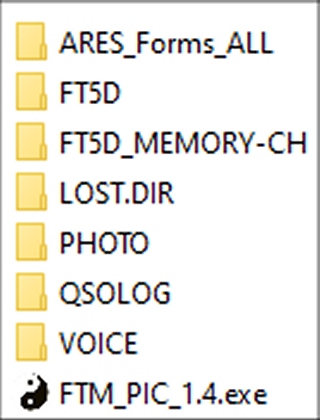
This really important, put this file on your hard drive,
and put "FTM_PIC_1.4.exe" in the root folder.
1- Don't use the program on the MicroSD that the radio uses.
2- This program only
looks for files in the PHOTO folder.
Take your existing pictures you have from your cell phone or other source and
copy them to the "PHOTO" folder. This software will reduce the image size to
320x240 pixels, make sure to pick a unique filename, then save the file.
This program saves the pictures to the "PHOTO" folder and only
looks for files in the PHOTO folder.
|
I tried using the
radio MicroSD and
the radio could not see it after using the program and writing the results
directly to the radio MicroSD. I had to re-format the card and
copy the files back onto the card. |
Double click on "FTM_PIC_1.4.exe."
The programs works by clicking on it, no installation needed. Enter your
Callsign and the 5 digit "Radio ID." You MUST enter different File names or all
your pictures will have the same name.
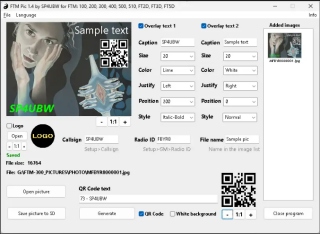
Copy the pictures the program modified (Saved) to the "Photo" folder on the MicroSD that is
normally in your radio. Put MicroSD back in your radio.
*
Step 3- You are done with the above. To send the pictures,
just do the following.
Finally, the fun part!
Turn the radio on and to a C4FM repeater (only works on the local
repeater, not linked repeaters) or simplex frequency, like 503. If you
see "FM" in white text. Touch the "MODE" button twice
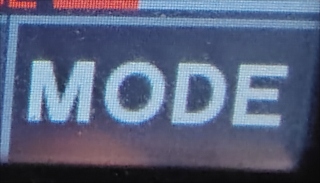
until you see "DN" in red. Make a contact with
another station and give your call sign, when ready...
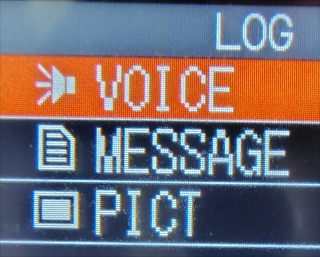
Press "Fmenu" and touch "LOG"
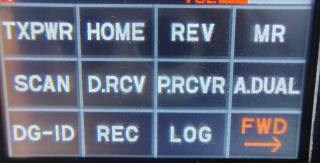
Touch the screen and press "PICT"
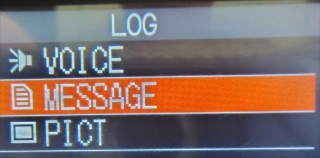
Touch the screen and press on one of the filenames and touch "SEND." On the
screen it will show "SENDING" on you radio, this takes approximately one minute
to send, and "DONE" when finished.
Congratulations, you just sent a picture to one or more
remote stations!
Be sure to give your call sign before you end your transmission.
***
Let's
talk about Texting
The QWERTY keyboard layout was invented by Christopher Latham Sholes in the
early 1870s.
The T9 ("Text on 9 keys") predictive text technology was invented in 1995 by
Cliff Kushler and his co-founder at Tegic Communications.
Back in the 1990s, typing out “hello” on most cell phones required an exhausting
13 taps on the number keys, like so: 44-33-555-555-666.
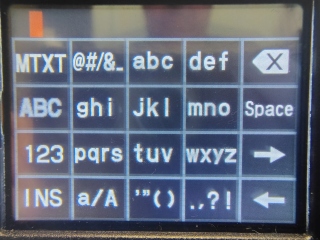
This radio uses the T9 keyboard, so you would touch
"ghi-ghi>def-def>jkl-jkl-jkl>jkl-jkl-jkl>mno-mno-mno."
Just to type "hello," that's 17 touches of the screen for 5 characters.
Text messages
cannot be imported
into the radio.
*
Let's talk
about audio files.
Yes, The Yaesu
FT5DR can send audio files created by pressing the PTT and talking or receiving
audio on the radio.
You CANNOT
send imported audio files.
Here is an example of an audio file
I recorded.
*
How to record
audio and play back the audio on the radio.
How to digitally (C4FM) send a Voice, Message, or Picture.
The Yaesu FT5DR records
audio in WAV format (.wav) directly onto a microSD card. Recordings can capture
both transmit (TX) and receive (RX) audio, which are saved to the "VOICE" folder
on the SD card and can be played back on the radio or a computer.
Example 1
Example 1
Press and hold "Fmenu"
and
choose "Tx/Rx."
Choose "3 AUDIO,"
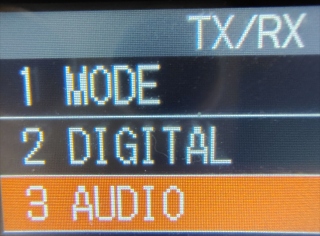
"6 RECORDING,"
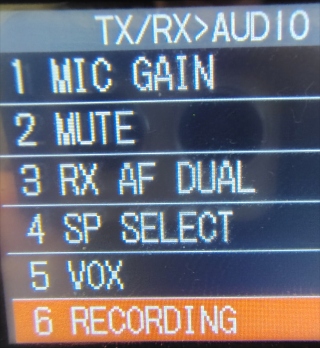
"BAND: can set be set to A (top radio) or
B (bottom radio)," "MIC: Choose ON."
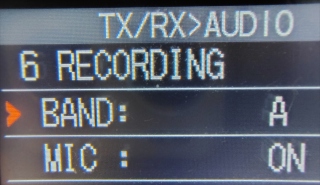
Press "BACK" 4 times.
To record audio on the Yaesu
FT5DR, press the "Fmenu" key,
select "REC",
"RECSTART" appears momentarily on
the screen onto the MicroSD card. Now, everything transmitted or received on the
radio, is recorded.
(If you are keeping track, that was 11 presses on the
radio to record audio, but I'm not complaining, right?)
*
To stop recording, press "REC STOP."
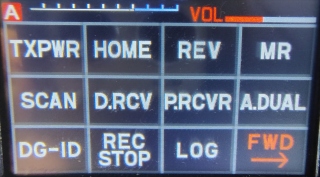
***
Finally some good news, the next time you want to record audio just press "Fmenu"
and select "REC."
***
To play back recorded audio
press the "Fmenu" key,
then touch the screen and press "LOG"
(pressing "Fmenu" does not take you to the audio files.) Touch the screen
and press the "VOICE."
Touch the screen and press the filename on the screen
from the list to play. You can also remove the card to play WAV files on a
computer.
*
Send Audio, press the [GM/X], Make sure the radio is in C4FM
Digital (DN) mode.
then press "LOG."
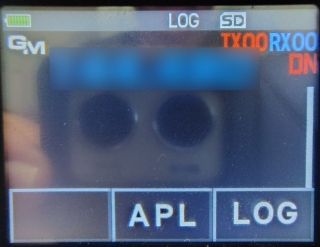
Then press "VOICE, MESSAGE, or PICTURE."
choose one from the list
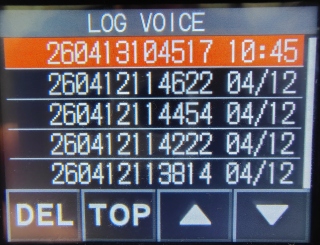
the radio will play the file.
The radio does not send audio files!
*
Back