Codeplug settings
Free Advice:
Do as much as you
can in the software, this way it won't overwrite the changes you made to the
radio. Putting your APRS Callsign and -7, "Digital VW," "North up" etc.
in the software prevents you from having to
re-enter it and every other change that you made to the radio previously, that is
not in the Codeplug (file).
Every time you write the Codeplug to the radio you overwrite every change that was
made in the radio!
If you do make changes to the radio you want to keep, read the data back into
the software and save it under a different name.
Have Fun!
*
Turn on VW
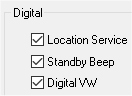
Settings, radio menu settings, common 2, under digital- third option- click on
box "Digital VW". (Digital VW allows wide digital bandwidth, better audio, no
GPS.)
Display
Compass, set to "North up".
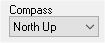
#1
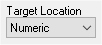
Target location
"Numeric" (Show Lat, Long, GPS coordinates.)
On the "APRS" menu
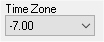
Time zone bottom left center of the screen, set to "-7.00".
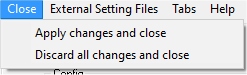
"Close," then "Apply changes and close."
*
Steps to Sync Clock with GPS:
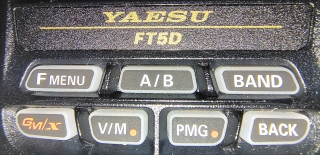
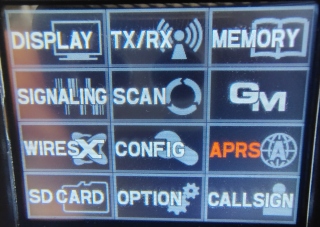
Turn on GPS: Press and hold [F MENU] > select APRS >
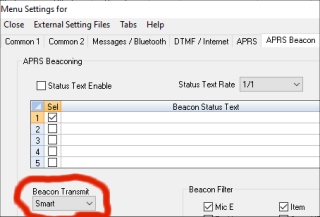
In the Codeplug choose "Smart" in
"Beacon Transmit."
Set Time: Press and hold [F MENU] > select APRS >
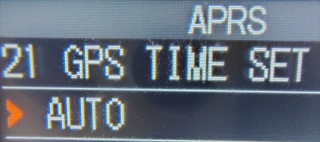
Menu 21 [GPS TIME SET].

Select Method: Choose "AUTO" for automatic updates, or "MANUAL" to trigger a
one-time sync with GPS.
On 5/2/26 James taught us to set the "Smart Beaconing" to "Type3" in the
Software.
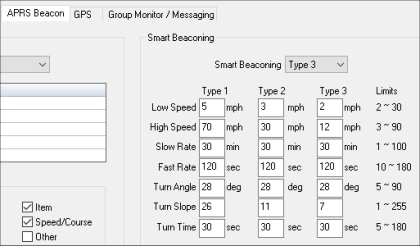
And then save the changes.
In the Radio Menu: Press and hold "Fmemu" button, then TOUCH APRS submenu on screen
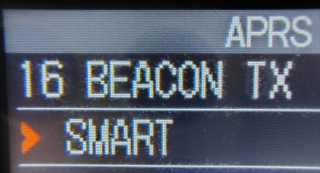
Go to Menu 16 BEACON TX and set to SMART
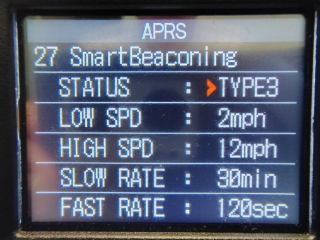
Go to Menu 27, "Smart Beaconing" and choose "Type 3."
MUTE Beacon (Menu 8): APRS MUTE set it to ON mutes speaker, still transmits.
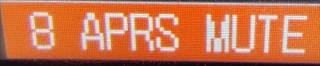
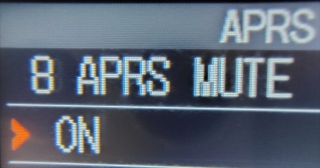
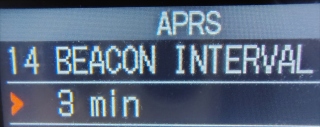
Set Interval (Menu 14): BEACON INTERVAL set it to 1min, 2min or 3min.

Set Callsign (Menu 23): Enter your callsign +SSID (i.e. C4LSIN-7) (-7 for mobile
HT)

Note: It is a lot easier to set this in the software than
manually in the radio.
*

Now that you have the radio set
up, let's add "Channel Banks." You can now add additional channels like the
Papa, Calnet, LAFD, FRS/GMRS (to listen), and other C4FM repeaters frequencies
in to your Codeplug. In your software, to the right of all the channel
information are the banks. Click on the bank you wish to put the added channels
in from bank 1-24.
Now, click on "Settings," "Bank
Names and Linking."
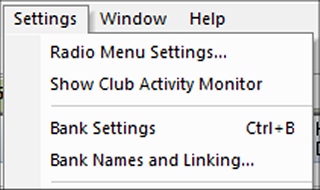
This brings up a box with numbers 1-24 and the ability to rename the bank. Click
on the desired bank and rename the bank to something like "ARES NW." After you
are finished click "OK."
*
Saving the data to the radio.
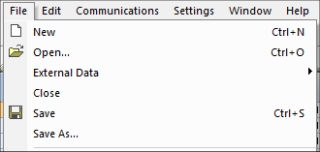
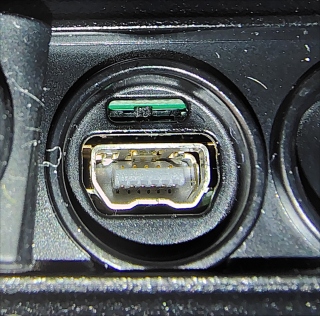
Plug in the USB cable into an available USB port. Plug the other end into the
USB Mini B port on the radio.
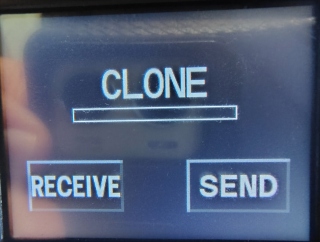
Hold down the "FMenu" button an turn the radio on.
In the software, click on "Communications" then "Send data to the radio." On the
radio, click "Receive."
In the software click "OK." This should start sending the
Codeplug to the radio,
it take about 20 seconds to finish. The radio reboots and is ready to use.
Unplug the USB Mini B from the radio.
*
Click here to download my
Codeplug.
*
Back